
Get started on your phone
Six steps, about five minutes. Do this once and your whole program lives in your pocket.
Step 1
Open your invite on your phone
Tap the gold button in your welcome email. Set a password, or use Face ID once you are in. Use your phone, not a laptop, so the camera steps work.
iPhone or iPad
Open the link in the Safari app. Adding to the home screen only works in Safari.
- Open the Mail app and find your Rehab® Health Lab email.
- Press and hold the gold button, then choose Open in Safari if it asks.
- Set your password, then tap Save Password when Apple offers.
Android, Google Pixel, Samsung
Open the link in Chrome. Samsung Internet also works.
- Open Gmail and find your Rehab® Health Lab email.
- Tap the gold button. It opens in Chrome.
- Set your password, then tap Save when Google offers.
Step 2
Add the app to your home screen
This is what turns the portal into a real app icon on your phone. Do it once.
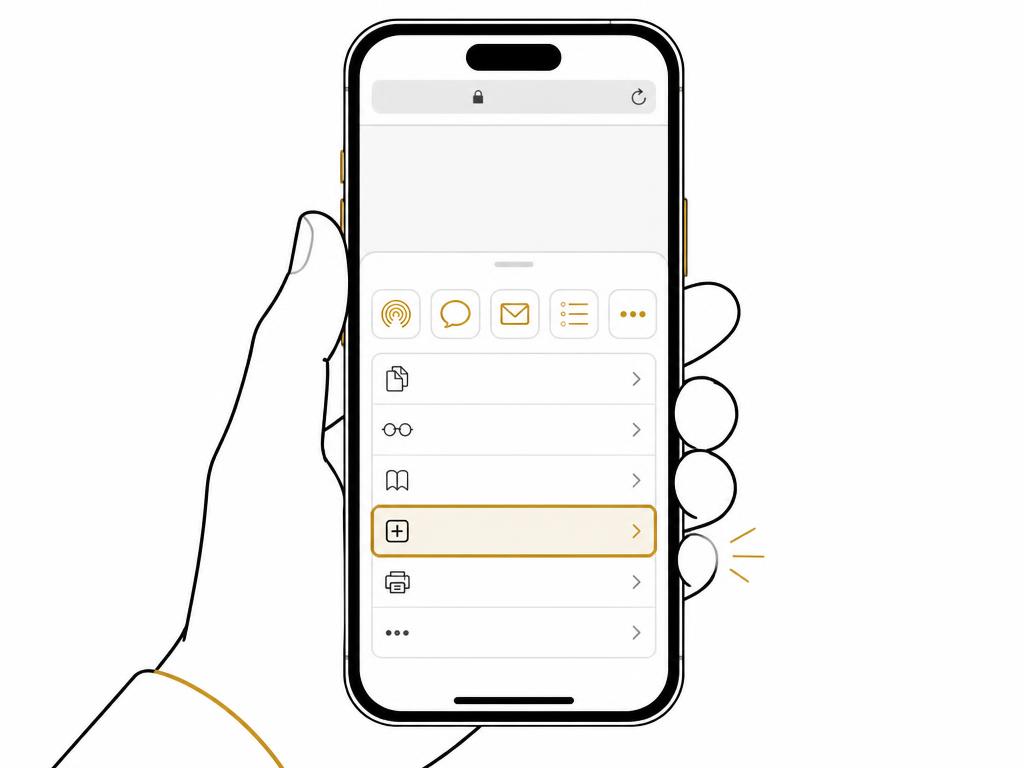
iPhone or iPad, Safari
Chrome on iPhone does not offer this. You must be in the Safari app.
- With the portal open in Safari, tap the Share icon, the square with an arrow pointing up, at the bottom center of the screen.
- Swipe up through the grey list until you see Add to Home Screen.
- Tap Add to Home Screen.
- Rename it Rehab® Portal if you like, then tap Add at the top right.
- Close Safari. Tap the new gold RHL icon on your home screen. It opens full screen with no address bar.
Android or Google Pixel, Chrome
Chrome calls it Install app or Add to Home screen depending on your version. Both do the same thing.
- With the portal open in Chrome, tap the three dot menu at the top right.
- Tap Install app. If you do not see it, tap Add to Home screen instead.
- Tap Install, or Add, on the box that pops up.
- If Chrome asks Add to Home screen or Install, choose Install.
- Find the gold RHL icon in your app drawer or home screen and tap it.
Samsung, Samsung Internet
- Tap the three line menu at the bottom right.
- Tap Add page to.
- Tap Home screen, then tap Add.
Step 3
Take your day one photos
Tap Progress, then Start guided scan. Prop your phone at hip height about 6 feet away, wear fitted clothing, stand tall and let the timer do the work. Capture front, side and back.
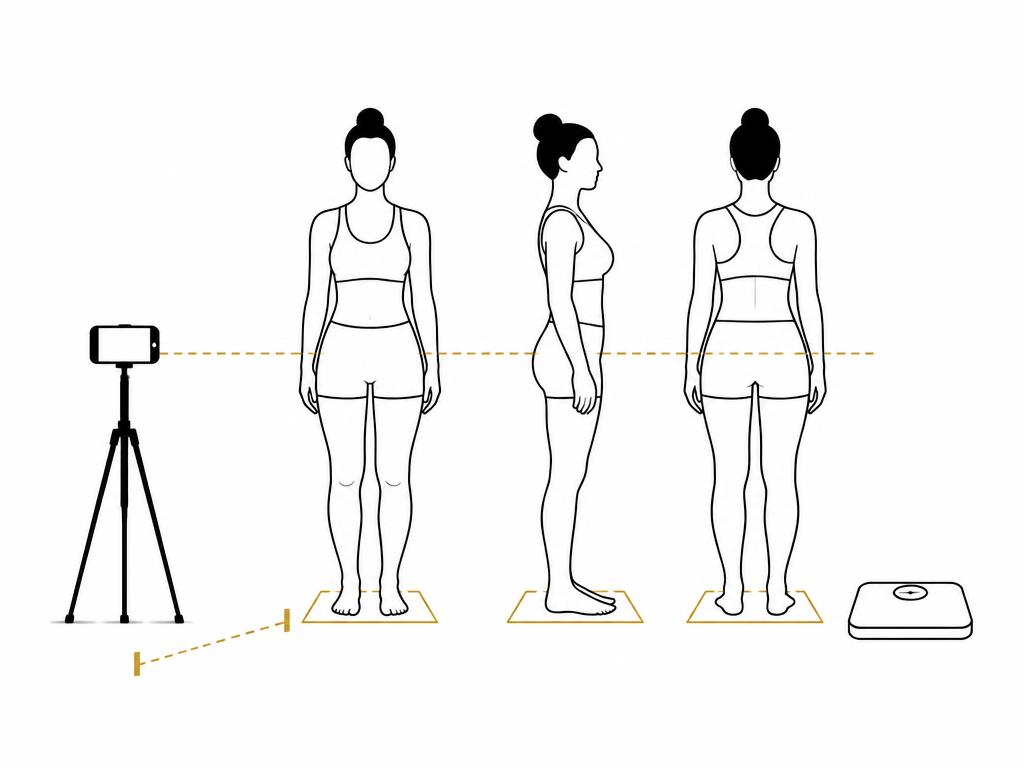
iPhone
- Tap Allow when Safari asks to use the camera.
- If you tapped Don't Allow before, go to Settings, Safari, Camera, then choose Allow.
Android
- Tap Allow when Chrome asks to use the camera.
- If you blocked it, tap the lock icon in the address bar, tap Permissions, then turn Camera on.
Step 4
Photograph your scale and log the number
Weigh yourself right after the photos, photograph the display from above, then type the same number in the form so your coach can verify your starting point.
Step 5
Say hello to your coach
Tap Messages and send your coach a note. That is the fastest way to get answers, any day of the week.
Step 6
Check in when we ask
You get a reminder each time a check in is due. Energy, sleep, mood, weight, about one minute. Your coach adjusts your protocol from it.
Questions: message your coach in the portal, or email support@rehabhealthlab.com. Nothing here is medical advice or a diagnosis.